Quasimorph Steam Deck Controls
Handheld layouts, controller limits, and Steam Input workarounds
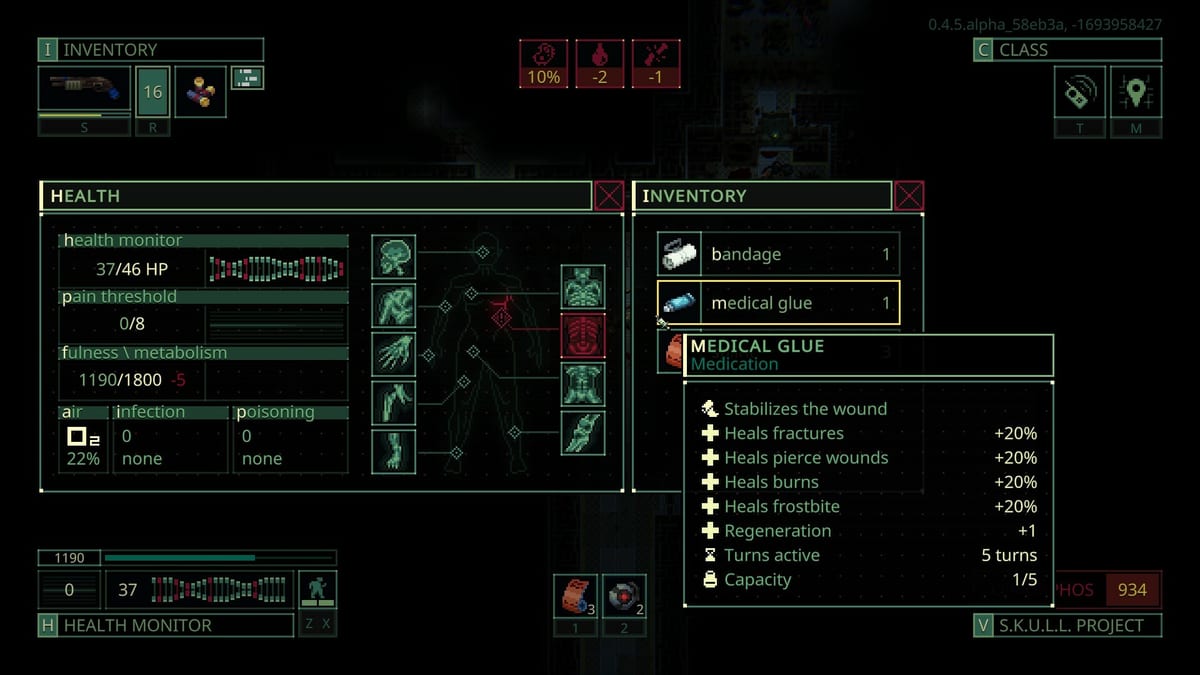
Quasimorph launched 1.0 on Steam with solid desktop play but handheld support that still expects you to do some configuration. Steam Deck owners can run the game comfortably once they install a community Steam Input layout, yet a few actions, throwing weapons, closing doors, bulk looting, remain awkward because those commands live in context submenus without native controller entries. This page explains what works on Deck, what community mappers fixed, and where you should fall back to touch or keyboard-style bindings.
Why Steam Deck needs a custom layout
Quasimorph combines grid movement, mouse aiming, and drag-and-drop inventory. Pure gamepad templates without mouse emulation cannot reload, examine enemies, or sort loot at speed. The developer added partial controller support during early access betas, but many players reported missing right-click equivalents and no official layout that covers inventory quality-of-life buttons. Steam Input solves most of that by emulating keyboard and mouse on top of physical controls.
The dominant community approach maps the left stick to WASD or arrow movement, the right trackpad to a virtual mouse with click regions for left and right buttons, and face buttons to wait, reload, and stance toggles. Layouts named Quasimorph Comprehensive Steam Deck and keybindings by xXcaptainLXx appear frequently in Steam Workshop and SteamInputDB. Browse the controller config overlay in-game, pick a layout with mouse inputs enabled, and test on a Mars moon mission before risking a timed Quasimorph run.
Recommended mapping baseline
Start from a layout that already separates movement from cursor control. Bind left stick to four-way movement, not analog free roam, because Quasimorph uses tile steps. Map the right trackpad to mouse movement with moderate sensitivity; precision matters when clicking wound icons or small inventory slots. Assign left trigger or a face button to left click and right trigger or another face button to right click so examine panels open reliably.
Community decks often bind B or a rear paddle to wait or skip turn, mirroring Keyboard Controls habits. Map reload to R1 or Y. Keep Shift throw on a grip button or chord if your layout supports modifiers; otherwise you may need to hold a Steam Input layer shift while clicking attack. Stance cycling should sit on a button you can hit without moving your thumb off the stick, because door fights collapse when you cannot sprint on demand.
Inventory on handheld
Inventory management is the main Steam Deck friction point. Ctrl-click auto-transfer and Shift-click stack transfer are keyboard modifiers; good layouts map them to paddles or dual-button chords. Without those, looting a single corpse can mean dozens of d-pad presses to highlight each item. Players recommend using the touchscreen for unload all, finish mission, auto sort, and other UI buttons that sit far from the main panel when playing pure gamepad.
When docked, you can attach a mouse and switch to the Keyboard Controls page recommendations instantly. Undocked, accept that some post-mission housekeeping works better with touch. Pre-mission prep belongs on the ship screen; use the Loadout Planner on desktop when possible, then execute the run on Deck with a slimmer kit you know you can manage.
Known limitations at 1.0
Magnum Scriptum acknowledged missing bindings for throw and close or block door actions in public discussions. Those commands appear in right-click or radial context menus that Steam Input cannot always reach unless you emulate a mouse right click precisely on the tile. Test throwing on a empty floor before relying on it in combat. For doors, practice opening, stepping back, and using context close on the door tile with trackpad cursor control.
Defence missions and Conquest floors with tight timers punish clumsy input more than Mars farming runs. Learn controls in low-pressure zones described in Getting Started and Walkthrough early chapters before carrying class chips you cannot afford to lose.
Beta controller support improved menu navigation for some players, but dynamic versus custom layout confusion on Deck still appears in forums. Force a specific community layout in Steam per-game controller settings instead of leaving input on automatic if buttons feel dead. Verify the layout exposes keyboard inputs; mouse-only templates fail on examine and inventory.
Steam Input chords and rear buttons
Advanced layouts use chords, hold one grip while pressing face buttons, to double available bindings without crowding the HUD. Chords help map throw, stance up, and quick loot on the same four buttons. Rear paddles on Deck hardware are ideal for Shift-like modifiers because they stay accessible during movement. If you migrate to a standard Xbox controller, duplicate those chords on bumpers so muscle memory transfers.
Avoid binding critical combat actions only to back buttons if you also play on couch setups without paddles. Keep reload and wait on face buttons as a fallback.
Pairing Deck controls with builds
Handheld play favors simpler builds. Scouts of Hades with a shotgun or SMG needs fewer inventory swaps than a Tunnel Rats loot goblin hauling three backup weapons. Eclipse Blades melee can work on Deck because combat stays click-heavy near doors, but examine and cannibalism menus still need cursor precision. Operators with infection immunity like Isabella Capet reduce consumable micromanagement, which helps when healing UI is finicky on trackpad.
Ranged specialists should read Weapons for low-click loadouts: high-capacity magazines, simple fire modes, and cut damage sidearms for robots. Heavy Tifton’s Elite teams reload constantly; confirm your reload binding before entering robot floors listed on World hubs.
Troubleshooting quick fixes
If movement works but clicks do not register, open Steam Input and confirm the right trackpad sends mouse output, not joystick camera. If the game ignores controller entirely, check Desktop Mode versus Gaming Mode launch and ensure Quasimorph is set to use Steam Input instead of game defaults only. After major patches, community layouts may need re-download; revisit Workshop after 1.0.2 camera and minimap changes (middle-mouse minimap drag, camera follows mouse).
When all else fails, use Deck keyboard overlay for ship crafting and inventory sorting, then switch to your layout for missions. Hybrid play is normal for extraction RPGs until official templates cover throw, door close, and bulk transfer natively.
Cross-read Combat Stances so you know when sprint calorie drain will starve a long handheld session, and keep Items crafting notes handy because medkits and sorbets crafted on ship save painful in-mission menu time on Deck.
Frequently Asked Questions
Quick answers to the most common questions.
Does Quasimorph have official Steam Deck support?
The game runs on Steam Deck and received beta controller improvements, but comfortable play usually requires a community Steam Input layout with mouse emulation.
What is the best Steam Deck layout for Quasimorph?
Popular community layouts map left stick to movement, right trackpad to mouse, and face buttons to wait and reload. Search Steam Workshop for comprehensive Deck configs with keyboard and mouse inputs enabled.
Why is throwing weapons hard on Steam Deck?
Throw uses Shift plus click and often lacks a dedicated controller binding in vanilla options. You must emulate Shift with Steam Input chords or use trackpad mouse carefully.
Can I close doors with a controller?
Door close and block actions frequently appear only in context menus. Use right-click emulation on the door tile or touchscreen until a native bind exists.
Should I use touch screen on Steam Deck for Quasimorph?
Touch helps for unload all, finish mission, auto sort, and dense inventory panels. Many players use a layout for combat and touch for post-fight loot management.